To move the signed documents and related files like pictures to your own storage you can setup the archiving.
Follow the below instructions.
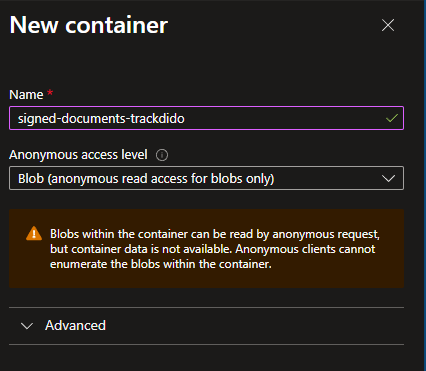
Create a new container in your Azure Storage account like in the below picture.
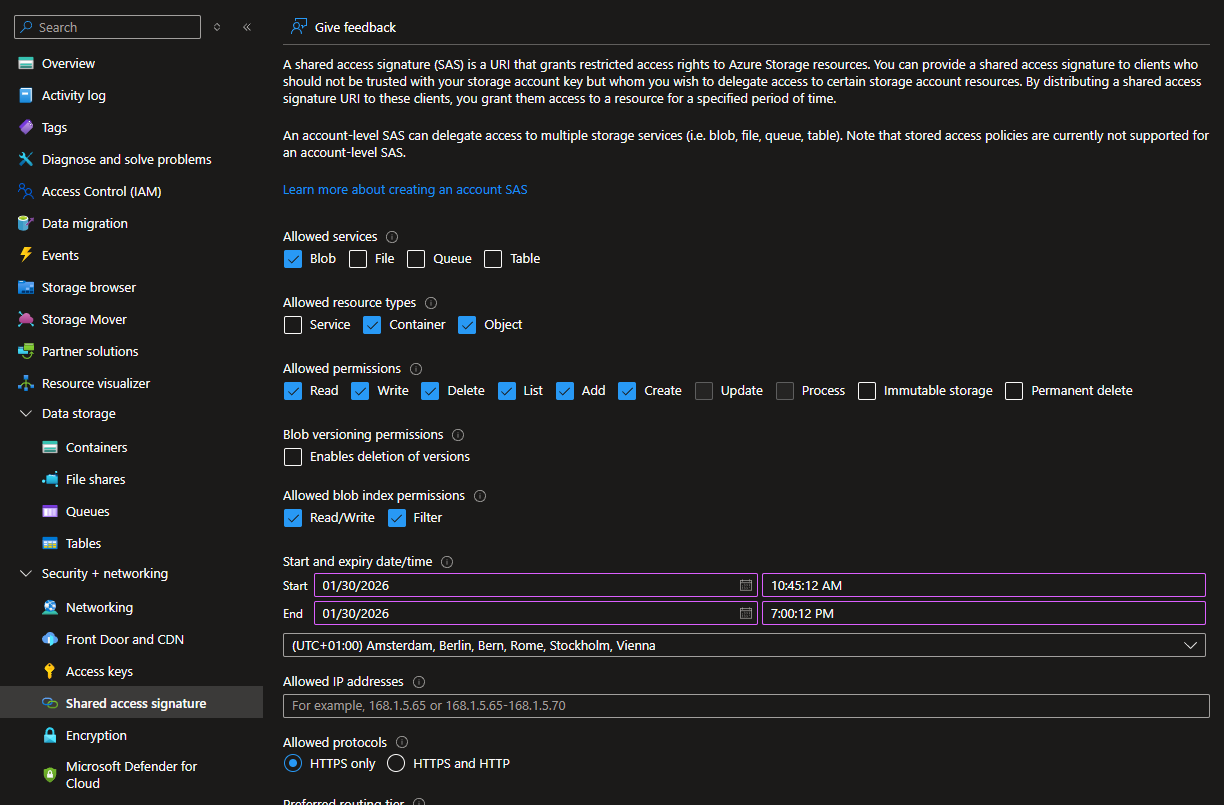
Create Shared Acces Signature (SAS) with settings:
Go to the tab: Archiving.
Fill in the fields below. Make sure the Archive container name is the same as the one you just set up in Azure.
Paste the SAS token you just created into the SAS token field. If all information is correct, the field will show 'Stored'. A test file will be created in the container to verify the connection.
The archive date formula defines from what moment documents will be archived from the SpotYourData storage to your own storage. In the given example, this is -4D, meaning that documents that are 4 days old or older will be archived.
Note: We advise not to archive documents too soon to your own storage. If there is a misconfiguration or an expired SAS token, this will affect functionality, because our functions will not be able to access the files.

From now on, there will be a job queue that runs every evening to perform the archiving.
If you already have a large amount of signed documents and you set up archiving for the first time, it may take a while before all documents are archived, since we apply a limit to the maximum number of files that can be archived in one day.
Was dit artikel nuttig?
Dat is fantastisch!
Hartelijk dank voor uw beoordeling
Sorry dat we u niet konden helpen
Hartelijk dank voor uw beoordeling
Feedback verzonden
We stellen uw moeite op prijs en zullen proberen het artikel te verbeteren